1. Using the wrong microphone
macOS picks a default input device and sticks with it — until it doesn't. Connect AirPods for a call, disconnect them after, and your next meeting might use the built-in mic on your MacBook, which is sitting two feet away on a stand, picking up the fan noise from your display and the keyboard clatter from your desk.
Fix: Before every call, check System Settings → Sound → Input and verify the correct device is selected. Better yet, test your microphone on Mac before joining.
2. Not muting when you're not speaking
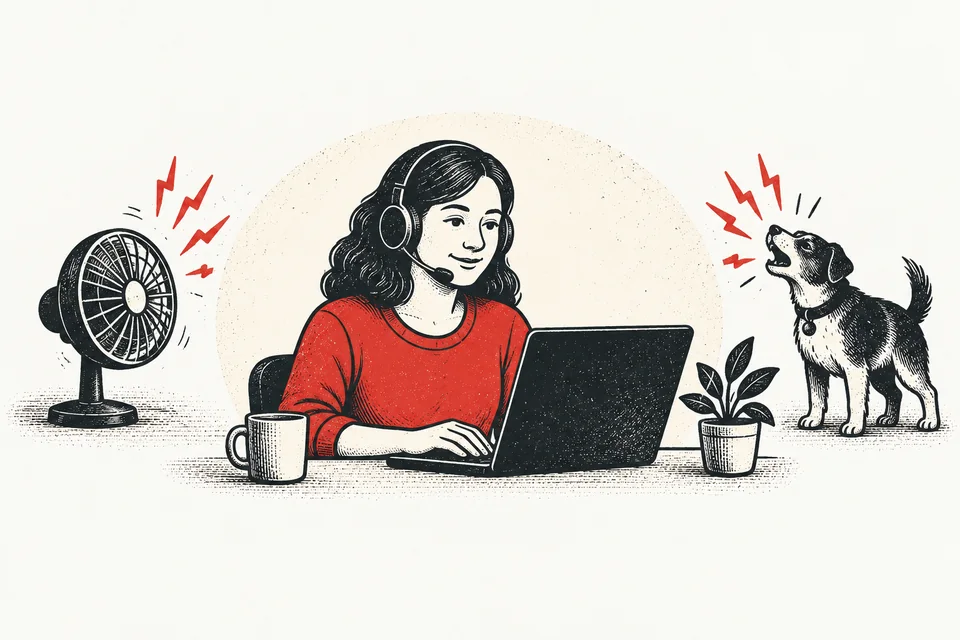
Every unmuted mic adds ambient noise to the call. Your keyboard. Your breathing. The dog barking three rooms away. The construction outside. Individually, each is minor. Multiply it by 8 people in a meeting and the call sounds like a busy restaurant.
Fix: Default to muted. Unmute only when you're about to speak. Better still, use push-to-talk on Mac so silence is automatic.
If you struggle to remember your mute state, that's a mute visibility problem, not a you problem. A floating mute indicator that's always visible solves this.
3. Causing echo without realising it
Echo happens when your microphone picks up audio from your speakers. The other person hears themselves a half-second later, and it's maddening. Modern call apps have echo cancellation, but it's not perfect — especially with the MacBook's built-in mic and speakers, which are physically close together.
Fix: Use headphones. Any headphones. Even the cheapest wired earbuds eliminate echo entirely because the audio never reaches a speaker that the mic can pick up. AirPods work well too — they use beamforming to reduce feedback.
4. Being too far from the mic
Your MacBook's built-in mic works best when you're 30–60cm away. If your laptop is on a stand across the desk, you're probably 80cm or more away, and the audio quality drops sharply. You sound distant. Quiet. Like you're in a cave.
Fix: Move closer to the mic, or use a headset with an integrated microphone that stays near your mouth regardless of your laptop's position. External USB microphones (like the Blue Yeti or Elgato Wave) are better still, but any headset mic is a massive upgrade over a distant laptop mic.
5. Ignoring background noise
Fans, air conditioning, typing, chewing, notifications, music, children, pets. If you can hear it, your mic can hear it. And unlike your brain, your mic can't filter it out.
Fix: Use macOS Mic Mode (Control Centre → Mic Mode → Voice Isolation) to filter background noise. Zoom and Teams also have built-in noise suppression — turn it on in settings. And when you're not speaking, mute your mic on Mac. Your colleagues will thank you.
6. Not checking if you're actually transmitting
You're unmuted. You're speaking. But nobody responds. Because macOS silently switched your input device, or your Bluetooth headphones quietly disconnected, or the input volume is at zero from when you dragged it down earlier.
Fix: Use a visual speaking indicator. Am I on Mute? Pro shows a real-time pulse that moves when audio is flowing from your mic. If you're talking and the pulse is static, something is wrong — and you know instantly without having to ask.
7. Running multiple apps that access the mic
If Zoom, Teams, and a voice memo app are all accessing your microphone simultaneously, you're asking for trouble. Audio routing conflicts can cause crackling, volume drops, or one app silently hijacking the input from another.
Fix: Close any app that uses the mic when you're not using it. Check which apps have mic access in System Settings → Privacy & Security → Microphone. If you see apps there you don't recognise, revoke their access.
Works with every call app
Sound like a professional on every call
A floating mute button with a speaking pulse. Always visible. Always in control.
Free forever · 30-day Pro trial · No credit card needed