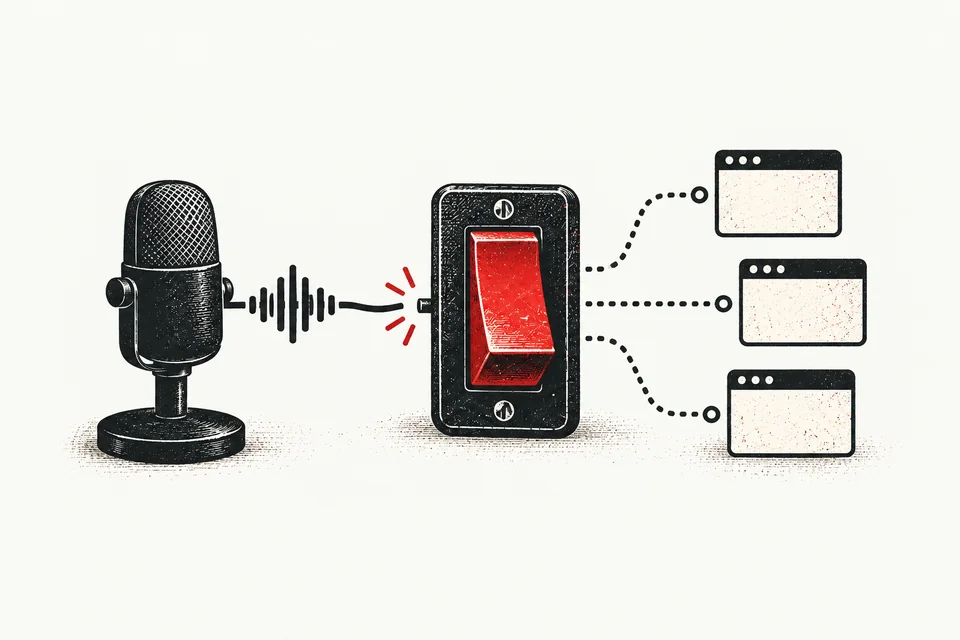
To mute your microphone on Mac, go to System Settings → Sound → Input and drag the input volume to zero. For a faster method, use a call app shortcut like ⌘⇧A in Zoom or ⌘⇧M in Teams. For the fastest option, use a system-level mute app like Am I on Mute? that adds a global shortcut working across every app.
1. System Settings: the worst option that technically works
Open System Settings. Click Sound. Click Input. Drag the slider to zero. Congratulations, you're muted. You also just burned 15 seconds while your colleague asked for the third time if you had thoughts on Q2 projections.
- Apple menu → System Settings
- Click Sound in the sidebar
- Scroll down to the Input section
- Drag Input volume to zero
This is technically muting. It's also technically possible to drive a nail with a shoe. Nobody should do either.
2. Control Centre: better, but still too slow
macOS Monterey introduced the orange privacy indicator dot when an app accesses your mic. macOS Ventura took it further by adding a Mic Mode toggle in Control Centre. Click Control Centre, find the mic section, and you can mute from there.
It's an improvement over Settings. But it's still a click-hunt during a live conversation. You're fumbling through a dropdown while someone waits for your answer. And you can't tell at a glance whether you're muted or not without opening the panel.
Better than nothing. But "better than nothing" is a low bar for a company that redesigns the calculator app every three years.
3. App shortcuts: fast, fragile, and fragmented
Every call app ships its own mute shortcut. They all work. They all break the moment you switch to another window.
| App | Shortcut |
|---|---|
| Zoom | ⌘⇧A |
| Microsoft Teams | ⌘⇧M |
| Google Meet | ⌘D |
| Slack Huddle | M |
| FaceTime | Click the mic icon (no shortcut) |
Three different shortcuts for three different apps. None of them work when you're in Notion taking notes, or in Safari pulling up a doc, or anywhere that isn't the call window itself. The moment you multitask, you're flying blind.
4. System-level mute: the right idea
Here's the insight that changes everything: don't mute the app. Mute the microphone.
When you mute at the macOS system level, every app goes silent simultaneously. You don't need to know which call you're on, which window is focused, or which shortcut to press. One action, universal effect.
This is what Apple should have built into macOS years ago. They didn't. So third-party apps filled the gap. The best ones give you a single global shortcut that works from anywhere, regardless of which app is in front.
So which method should you actually use?
If you're in one or two calls a week, the built-in app shortcuts are fine. Memorise the right one, keep the call window visible, and move on.
If you're in calls daily, that stops working. You're context-switching constantly. You're sharing your screen. You're in back-to-back meetings across different platforms. You need something that works regardless of what's on screen.
That's where system-level mute with a visual indicator becomes essential. Not a nice-to-have. A genuine prerequisite for sane remote work on a Mac.
Works with every call app
The mute button Apple forgot to build
A floating mute control for Mac. Always visible. Works with every app. Free forever.
Free forever · 30-day Pro trial · No credit card needed