Last updated:
Quick answer
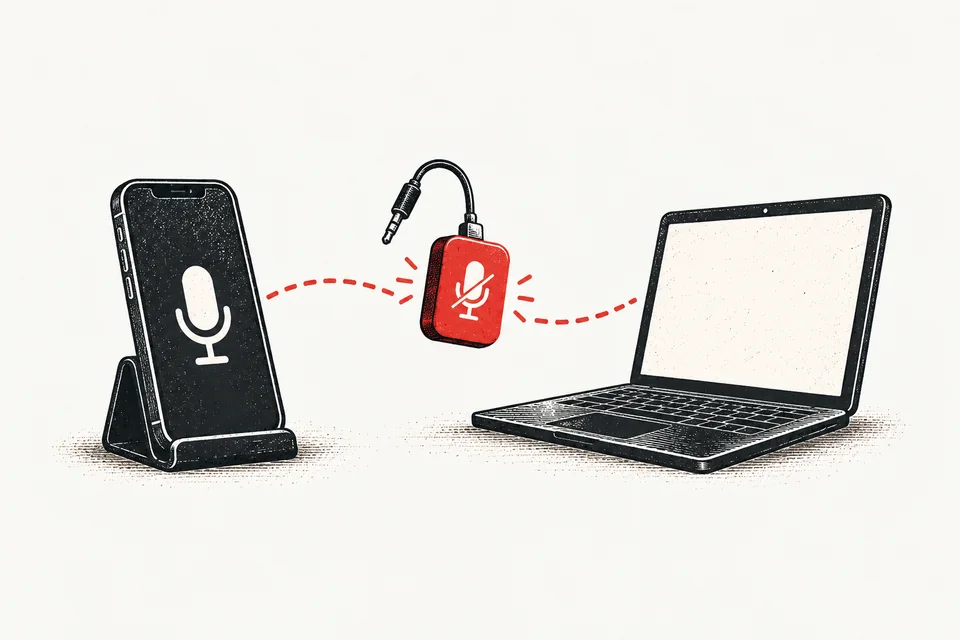
When your iPhone is your Mac's microphone through Continuity Camera, macOS gets no mute control and no volume control for it, so neither macOS nor any Mac mute app can silence it. To mute, use your call app's mute button, switch your input back to the Mac's built-in mic and mute that, or disconnect the iPhone.
Can I use my iPhone as a microphone for my Mac?
Yes. Continuity Camera, introduced with macOS Ventura and iOS 16, lets a nearby iPhone act as your Mac's webcam, and its microphone becomes available as an audio input too. Both devices need to be signed in to the same Apple Account, with Wi-Fi and Bluetooth turned on.
The iPhone then appears under System Settings → Sound → Input next to your other microphones, usually named after your iPhone. Call apps list it in their microphone menus as well.
Why can't my Mac mute my iPhone's microphone?
To mute a microphone at the system level, the Mac needs something to switch off. Most microphones offer a mute control, a volume control, or both. Built-in Mac mics and most USB mics do.
An iPhone used as a Continuity microphone offers the Mac neither. There's no mute for macOS to turn on and no input level to turn down. That means:
- System Settings → Sound can't turn its input volume down.
- Audio MIDI Setup has no mute or volume to change for it.
- No Mac mute app can silence it, because there's nothing for the app to control.
It's a limit of what the device exposes to the Mac, not a setting you've missed.
The danger is a mute tool that doesn't notice. If it shows "muted" while the iPhone keeps sending audio, you'll trust it and keep talking. Am I on Mute? doesn't pretend: when the active input is an iPhone, its floating button stays on LIVE and the app explains why it can't mute that mic.
How do I mute my iPhone microphone during a call on a Mac?
1. Use the call app's own mute button
In-app mute works whichever microphone you use. Zoom, Teams, Google Meet, Slack and FaceTime all stop sending your voice when you mute inside the app. Shortcuts such as ⌘⇧A in Zoom, ⌘⇧M in Teams and ⌘D in Meet only work while that app is in front.
2. Switch back to the built-in mic, then mute
- Open System Settings → Sound and choose your Mac's built-in microphone under Input. In Am I on Mute?, you can do the same from the menu bar icon's Input Device menu.
- Make sure the call app follows the system input, or pick the built-in mic in the call app's audio settings.
- Mute as normal. The built-in mic can be muted at the system level.
Am I on Mute? can do this in one step. After you mute, its mute check listens to confirm the mic went quiet. If it didn't, it warns "Your Mic Is Still Live" and offers Switch to Built-in Mic and Mute.
3. Disconnect the iPhone
On the iPhone, tap Disconnect on the Continuity Camera screen. Once the iPhone is gone, the call app switches to another microphone, and that one will be live unless you mute it too.
Which ways of muting work with an iPhone mic?
| Method | Mutes the iPhone mic? | Notes |
|---|---|---|
| Call app's mute button | Yes, for that call | App shortcuts only work while the app is in front |
| Switch to built-in mic, then mute | Yes, the iPhone is no longer used | Check the call app follows the new input |
| Disconnect on the iPhone | Yes, the iPhone is no longer an input | The call may switch to another live mic |
| System Settings → Sound input volume | No | There's no volume control for it |
| iPhone Ring/Silent switch or Action button | No | Silences alerts, not the microphone |
| Any system-level Mac mute app | No | Am I on Mute? shows LIVE so you know |
Am I on Mute?'s Mute every input device option can't reach an iPhone mic either. It mutes every other input, and the iPhone stays live.
How do I stop my Mac using my iPhone as a microphone?
For one call, choose a different input in System Settings → Sound → Input and in the call app's audio settings.
To turn the feature off on the iPhone, go to Settings → General → AirPlay & Continuity and turn off Continuity Camera. On older iOS versions the menu is called AirPlay & Handoff.
If you like the iPhone's sound, keep using it and make the call app's mute button your habit. If you rely on a system-wide mute, use the built-in mic or a USB mic for calls instead. See the best USB microphones for Mac.
Frequently asked questions
Why does Am I on Mute? show LIVE when my iPhone is the microphone?
Because the Mac can't mute an iPhone used as a Continuity microphone. It offers no mute or volume control to macOS, so Am I on Mute? shows LIVE and explains why instead of showing a mute that isn't real.
Can I lower the input volume of my iPhone microphone on a Mac?
No. macOS doesn't get a volume control for an iPhone used as a microphone, so the input volume in System Settings → Sound can't turn it down.
Does muting in Zoom or Teams work with an iPhone microphone?
Yes. Muting inside the call app stops it sending your voice, whichever microphone you use. It only applies to that app, and its keyboard shortcut only works while the app is in front.
Does the iPhone's silent switch mute the microphone?
No. The Ring/Silent switch, or the Action button set to Silent Mode, silences calls and alerts. It doesn't mute the microphone.
How do I turn off Continuity Camera on my iPhone?
On the iPhone, open Settings → General → AirPlay & Continuity and turn off Continuity Camera. On older iOS versions the menu is called AirPlay & Handoff.
Works with every call app
Know when a mute didn't work
Am I on Mute? checks that your mic actually went quiet, and tells you plainly when it can't be muted.
Free forever · 30-day Pro trial · No credit card needed