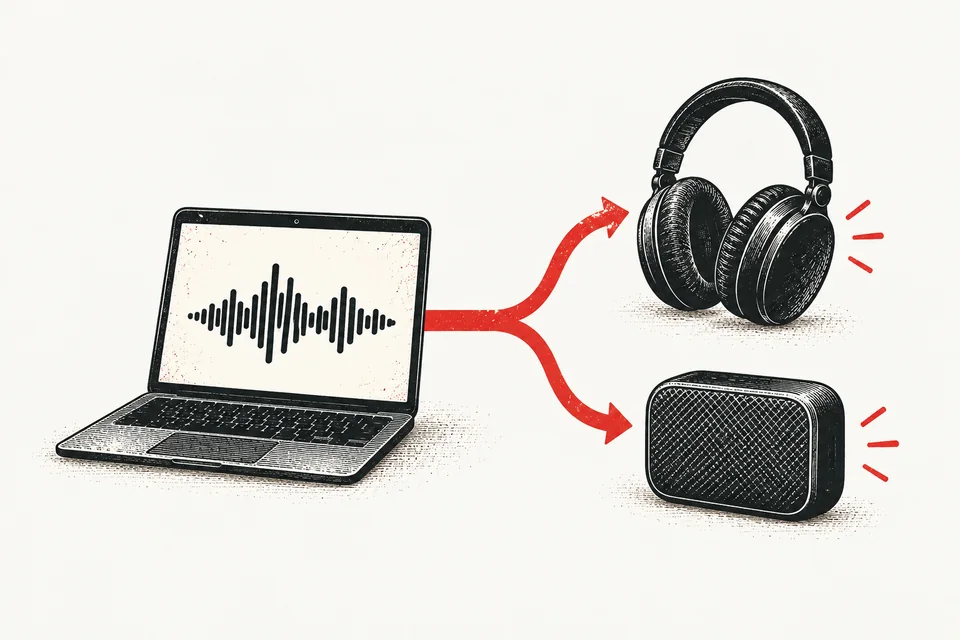
Why you'd want multiple audio outputs
There are several legitimate reasons to send audio to two devices at once:
- Presenting in a room – hear the call through your headphones while the room hears it through speakers
- Monitoring with a partner – two people listening to the same audio from one Mac
- Recording while listening – send audio to both your recording interface and your monitors
- Desk setup with monitor speakers – use your monitor's speakers and a USB headset together
macOS doesn't expose this option in System Settings. You need Audio MIDI Setup, a built-in utility that Apple ships with every Mac but never mentions.
Step 1: Open Audio MIDI Setup
There are two ways to find it:
- • Open Spotlight (⌘Space) and type "Audio MIDI Setup"
- • Or navigate to Applications → Utilities → Audio MIDI Setup
You'll see a list of all audio devices connected to your Mac – built-in speakers, headphones, USB mics, Bluetooth devices, monitor speakers, etc.
Step 2: Create a Multi-Output Device
Click the + button in the bottom-left corner of the Audio MIDI Setup window and select "Create Multi-Output Device".
A new device appears in the list called "Multi-Output Device". On the right side, you'll see checkboxes for every audio output connected to your Mac.
Check the boxes for the devices you want to use simultaneously. For example, check both "MacBook Pro Speakers" and "External Headphones" to play audio through both at once.
The first device you check becomes the "clock source" – the master device that controls the audio timing. This should be your primary output (usually the one with the best quality or lowest latency).
Step 3: Set it as your output
Now tell macOS to use your new Multi-Output Device:
- Open System Settings → Sound
- Under Output, select your "Multi-Output Device"
Or Option-click the volume icon in the menu bar and select it from there.
Important caveat: when using a Multi-Output Device, you can't control volume from the keyboard or menu bar. You need to set the volume for each individual device in Audio MIDI Setup. This is the biggest annoyance of this approach and there's no workaround – it's a macOS limitation.
Using this for video calls
If you're using multiple outputs during a video call, be careful about echo. If one of your outputs is a speaker in the same room as your microphone, the other participants will hear echo. See our guide on how to stop echo on Mac for fixes.
For calls, you'll also want to make sure your input (microphone) is set correctly. The Multi-Output Device only affects output – your mic setting is separate. Check it in System Settings → Sound → Input, or in your call app's audio settings. More on this in our why your Mac picks the wrong microphone.
And as always, stay muted when you're not talking – especially with speakers active in the room. Am I on Mute? gives you a persistent floating indicator so you always know your mute state, regardless of which app is in front.
Troubleshooting
No sound from one device
Make sure the device's checkbox is ticked in the Multi-Output Device settings in Audio MIDI Setup. Also check that the device isn't muted at the hardware level.
Audio out of sync between devices
Check "Drift Correction" for the secondary device in Audio MIDI Setup. This compensates for timing differences between devices with different clocks.
Volume controls don't work
This is expected. Multi-Output Devices don't support system volume control. Adjust volume per-device in Audio MIDI Setup, or at the hardware level.
Bluetooth device not showing up
Make sure the Bluetooth device is connected and paired. It should appear in Audio MIDI Setup's device list. If not, disconnect and reconnect it.
Works with every call app
Know your mute status. Always.
A floating indicator that works with every call app on Mac.
Free forever · 30-day Pro trial · No credit card needed